Permissions Consent Pop-up
Every new user must approve permissions when accessing an app. Existing users see this prompt again after app logic or connector updates.
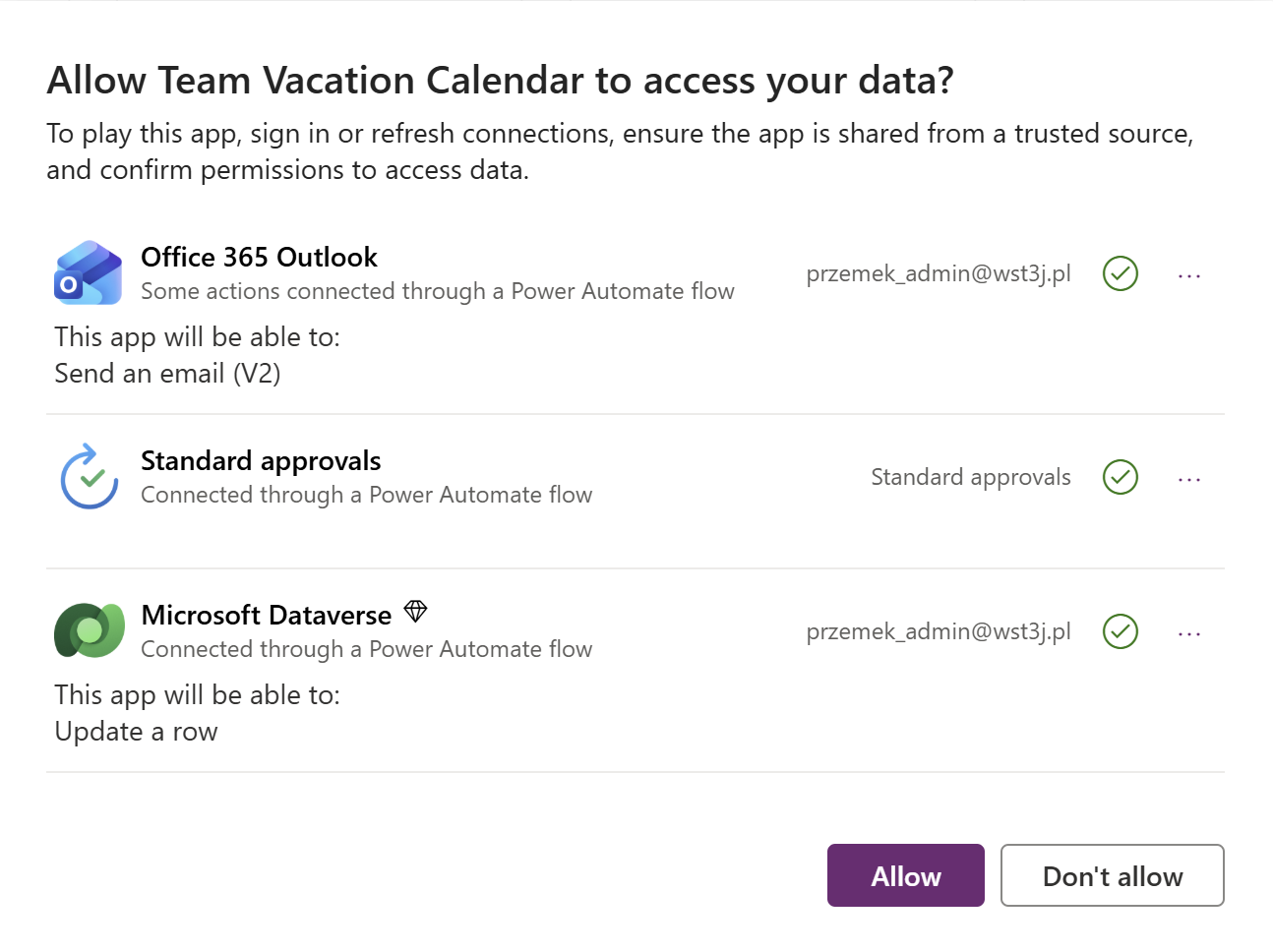
App permissions consent pop-up
In most scenarios, this pop-up can be bypassed.
Hiding consent pop-up
This requries a single PowerShell command:
| |
Expected result: BypassConsent flag is set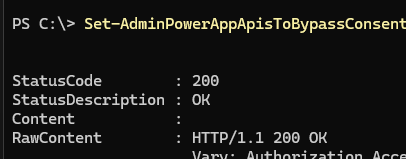
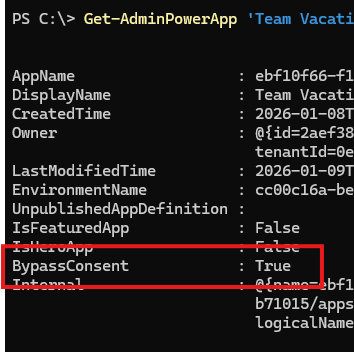
We can get guids using PowerShell:
Environment GUID:
| |
App GUID:
| |
What happens under the hood?
After the command runs successfully, the BypassConsent flag is set to True for the app.
If the connector meets certain criteria (listed below), the app assumes consent is granted.
This does NOT grant tenant-level delegated access (like an Entra registered app). If a user lacks permissions to access data, the app still denies access.
In short: The app behaves as the user already clicked “Allow”.
Consent bypassing criteria:
- Works only for Microsoft connectors (except..)
- Does not work for Entra and Azure DevOps connectors
- Does not work for third-party connectors (like Slack or Smartsheet)
- Connectors must use OAuth or No Auth
Power Automate flows require separate consent
Bypassing consent for the PowerApp does not automatically handle Power Automate flows triggered from the app.
What happens:
- The app works correctly (displays data, buttons respond)
- App shows flow related errors
- Flow audit log shows authentication/connection failures
Why this occurs:
- Power Apps and Power Automate have separate consent mechanisms
- Flows execute in the user’s context and require their own connection references
- Each user needs established connections to the connectors used in flows (Sending E-mails, Approvals etc.)
- Bypassing app consent doesn’t create these flow connections automatically
This is a separate configuration challenge that requires additional setup beyond the app consent bypass. It will be covered in another blog post.
Notes
- These commands are available in module:
Microsoft.PowerApps.Administration.PowerShell - Command reversing this setting is
| |
- After connector changes, updates, or major logic updates, it’s good practice to reset the BypassConsent flag
Summary
Use Set-AdminPowerAppApisToBypassConsent to hide consent pop-ups.
This doesn’t change permissions - just removes the prompt.