Problem
I need to monitor my mailbox for certain ticket emails and extract specific data from them. Classic automation stuff.
The catch? Power Automate doesn’t support regex.
The Workaround
Power Automate has this “Run a prompt” action that lets you use GPT to process text.
The idea is simple:
- Get the email
- Feed it to AI with instructions
- Get structured JSON back
- Do whatever you want with clean data
General flow description
The flow has the following steps:
- Get an email from a specific mailbox folder (emails get there via inbox rule)
- Convert HTML (email body) into TEXT (for raw output)
- Run a prompt to get specific info from the email
- Save the prompt output into JSON to easily proceed
- In my scenario I use a switch as I work with two types of emails
- If the email is about DL - save a new row into DL sheet
- If the email is about a group mailbox - save a new row into GroupMailboxes sheet
The Flow
Here’s the general structure:
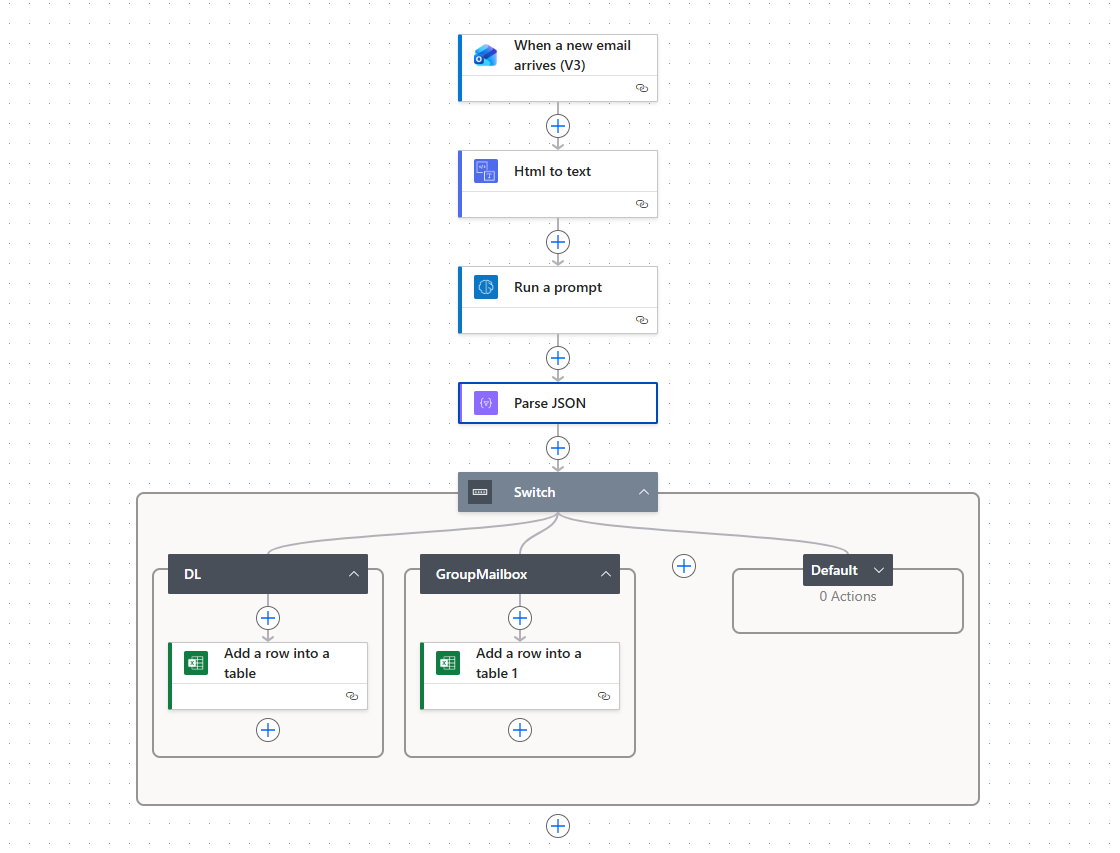
The full flow - nothing too crazy
Let’s break down each step.
When a new email arrives (V3)
I have an inbox rule that moves specific emails to a dedicated folder. The flow just monitors that folder.
You could also filter directly in Power Automate using subject/from conditions, but inbox rules give you more flexibility.
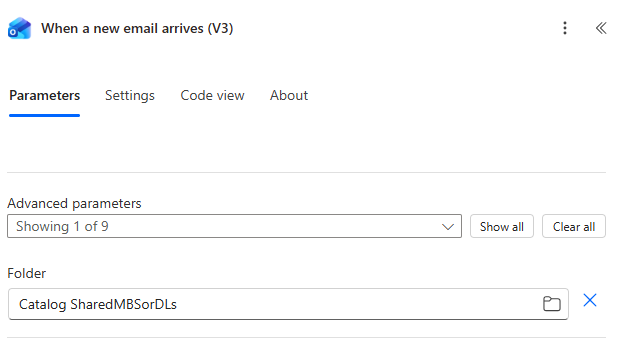
Monitoring a specific folder keeps things clean
HTML to text
Email bodies are HTML. AI works better with plain text. This step does the conversion.
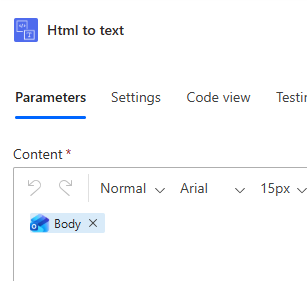
Just pass the email body - nothing fancy
Run a prompt
This is where the magic happens. A few important things to follow:
The prompt needs to be strict. AI loves to be helpful and chatty. You don’t want “Here are the extracted values based on your email content:”. You want just the JSON.
Use JSON output mode. There’s an “Output: JSON” setting in the prompt configuration. Use it. This makes Power Automate automatically parse the response into structured fields.
Use the standard model, not mini. Mini works, but standard works better.
Add content = data source. The “Add content” button is where you connect your input data. In my case, it’s the plain text email body from the previous step.
Test multiple times. AI can be… creative. Run your prompt with different test inputs before going live.
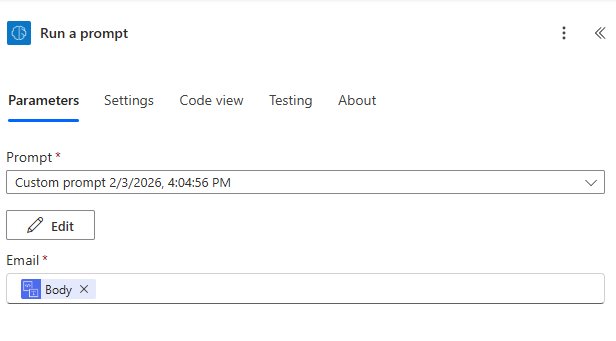
The prompt action with JSON output enabled
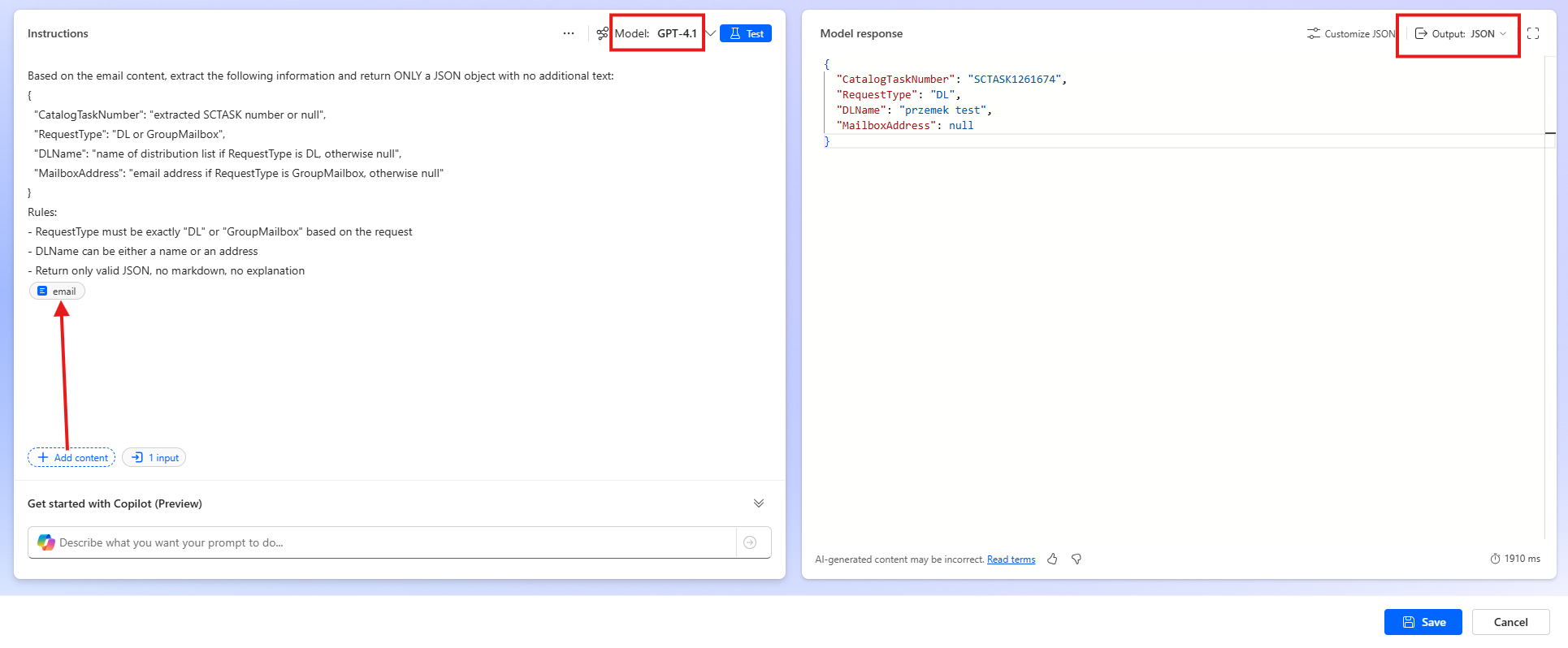
I recommend using the standard model, not mini
Here’s the prompt I ended up with:
| |
Parse JSON
Here’s where it gets weird.
So the prompt already returns JSON. And Power Automate parses it automatically when you use JSON output mode. So why would you add another “Parse JSON” action to parse.. JSON with JSON?
Good question.
But here’s what happened: the automatic parsing worked fine for DL emails. For GroupMailbox emails RequestType was null. Even though the raw JSON response clearly had the correct value.
The fix: Add a “Parse JSON” action manually and use the raw Text field from the prompt response. Define your own schema with proper null handling.
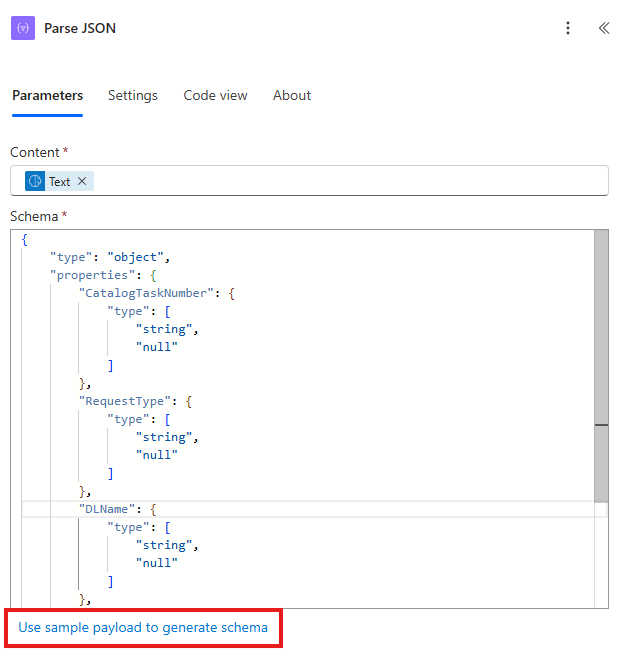
Parse the Text output, not the structured fields
For content, use: ‘Text’ - basically a prompt response.
Schema (with null support):
| |
You can build your own schema based on output from the prompt and using sample payload to generate it.
Switch
In my case, I have two types of requests that need to go to different Excel files. The Switch action handles this based on RequestType.
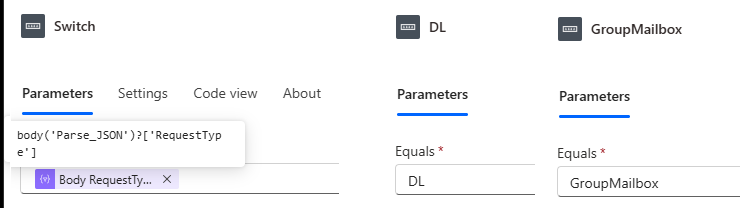
DL goes one way, GroupMailbox goes another
Important: Use the expression body('Parse_JSON')?['RequestType'] - not just body('Parse_JSON') (that returns the whole object and Switch will complain about expecting a string).
The cases are DL and GroupMailbox - case-sensitive, so make sure your prompt returns exactly these values.
Add a row into a table
Standard Excel action. Map the JSON fields to your table columns.
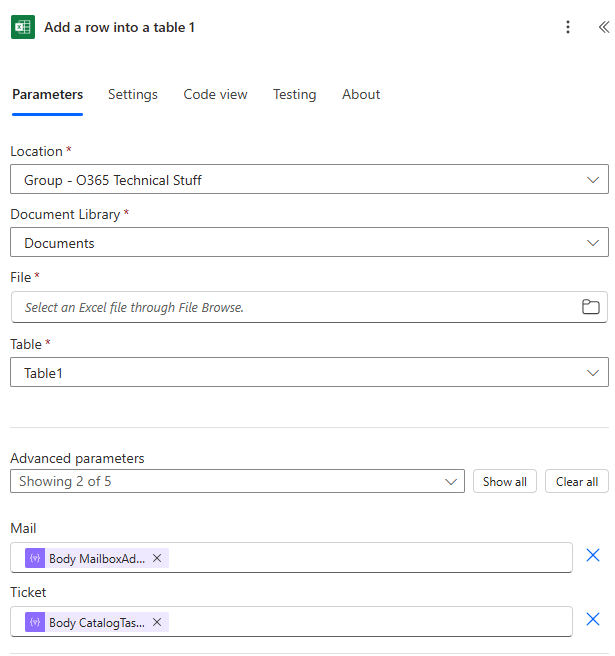
JSON fields map directly to Excel columns
Summary
Emails can be easily accessed using Power Automate. Excel tables can be easily written using Power Automate. The issue starts when a specific part of an email should be written into Excel - regex would be helpful, if supported.
It’s even quite funny, we got a working AI in Power Automate faster than regex support..